Exam Instructions — UH Math Contest 2026
Introduction
This page contains important contest information that should be read before the contest. Most of this information will NOT be presented during the specified exam times.
Please refresh this page along with any visited links to make sure you are viewing the most current content. You may need to clear your browser history to properly view any images that have been updated.
Students should do the following:
- Read these instuctions as well as the registration instructions before registering for the contest.
- Refer to these instructions again when watching the contest demonstration video and while performing the practice contest. (Links for the contest demonstration video and practice contest will be provided soon; we are updating them to reflect changes for 2026.)
- Read through this page again on January 30 (the day before the contest) because updates have been made to this page over time.
Be sure to read the Calculator & Technology Policy for clarification about the types of tools that are and are not permitted to be used during contest exams. AI technology such as ChatGPT, Gemini, Llama, and other LLMs (large language models) are NOT permitted to be used on any portion of the UH Contest exams. Also prohibited are similar math-specific tools including, but not limited to: Mathway, Photomath, MathPapa, QuickMath, and Math Solver – which either give step-by-step instructions or step-by-step solutions, or give an immediate answer when multiple steps are being computed in the background of the tool. Wolfram Alpha is also NOT permitted. An honor policy can also be found by scrolling down to the bottom of the current webpage.
Contest Demonstration Video and Practice Contest
Check out the contest demonstration video as well as the practice contest to get used to the format of the exam.
- Contest Demonstration Video
- Practice Contest
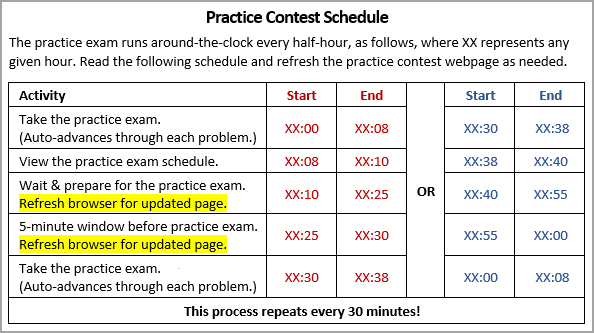
The practice contest can be taken every 30 minutes, according to the following schedule.
Contest Zoom Room
Visit the Contest Zoom Room to interface with the organizers between 8:00 am and Noon Central Time. This same room is also used to view and participate in the SmackDown at 12:15 p.m., and for the awards ceremony at 2:00 p.m.Summary of Major Changes for 2026 (compared to 2025)
(Many of these changes will be repeated later in this webpage page along with their corresponding content.)
- Calculators are required for all exams, though they may not be needed for every question. See the calculator & technology policy for more details on the type of tools which are and are not permitted.
- The Number Sense exam is not being offered for the 2026 Contest.
- For individual exams (every exam except for SmackDown):
- There is a fill-in-the-blank box for every question. Acceptable characters are the digits 0 through 9, the decimal point, and the negative sign; do not type anything else.
- Some questions will still be presented in a multiple choice format. In that case ,students should simply choose the best answer and then type 1 for A, 2 for B, 3 for C, 4 for D, 5 for E, or 6 for F. (No rounding rules are needed for multiple-choice questions unless indicated in the problem.)
- For questions that are not in multiple-choice format, answers should be rounded to the nearest ten-thousandth (4 places after the decimal). If 5 or more digits are submitted after the decimal point, the answer will be counted as incorrect — even if it is mathematically equivalent to the correct answer. See the rounding instructions page to view acceptable input, including shortcuts for integers and for some decimals. Do not type any units; units appropriate to the question will be implied in your answer.
- Once you type an answer and press the Submit button, you cannot change your answer, even if the timer is still running for that question. (You are permitted, however, to adjust your answer prior to pressing the Submit button.) If you type an answer and forget to press the Submit button, your answer will not be accepted.
- Students no longer have the ability to view their own score or the top 10 scores during the exam. (As always, the six top-scoring students for each exam will be announced at the Awards Ceremony at 2 p.m., and individual scores will be distributed within a few weeks of the contest date.)
Enrollment Rules
Check the contest enrollment rules to make sure that you are eligible for the exams that you plan to take. We perform a course verification process after the contest where we communicate with the schools of winning students before awarding contest prizes.Exam Content Information
For more information about the content for each exam, see the exam content information page. You can also view past contest exams at our past exams and results page — but keep in mind that the contest writers, format, and types of questions vary from year to year.Instructions for Algebra 1, Geometry, Algebra 2, Precalculus, Calculus, Statistics, Physics, and Calculation
- Refer to the contest schedule to view the start time of each exam that you are taking.
- The entire exam is to be viewed and taken on one device. You can use a desktop with a monitor, a laptop, or a tablet. Although a phone can be used, the problems will be small and you may need to do quite a bit of scrolling to view the entire screen.
- Calculators are required for all exams, though they may not be needed for every question. See the calculator & technology policy for more details on the types of tools which are and are not permitted.
- Questions are presented one-at-a-time using a tool that we call the autopresenter.
Contest Access and Walkthrough
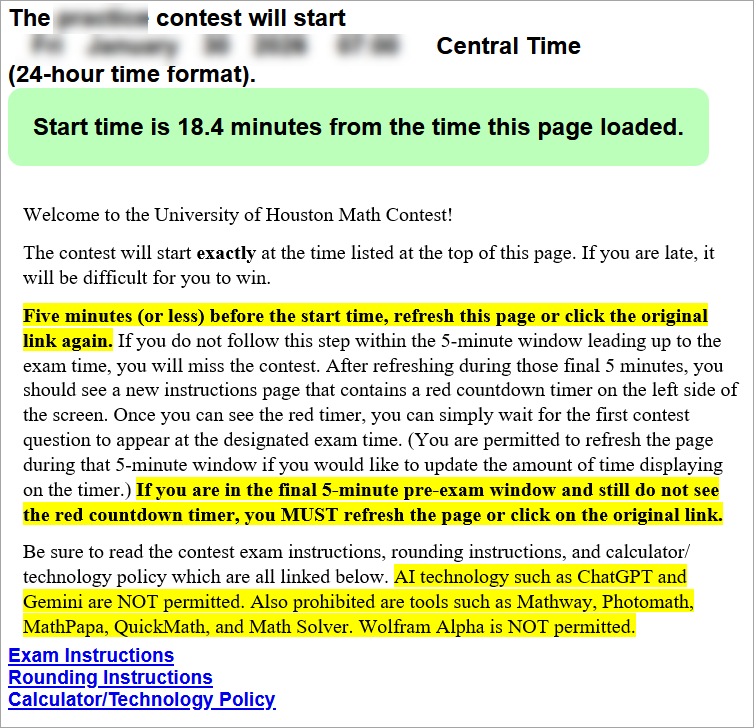
- To access each contest: Visit your Courseware account at https://casa.uh.edu, click on the Courses tab, and click on the link for the desired subject; this will place you on the course homepage for that contest. On the night before the contest, a contest link will appear at the top of that page which is specific to your account. Once available, you can open that contest link at any time, but you MUST refresh the contest page within 5 minutes of the contest start time or you will miss the contest exam. (Within those final five minutes, you will see a countdown timer on the left side of the screen.)
- If you log in or refresh the page greater than 5 minutes before the exam begins, you will see a screen like the one below.
- When five minutes (or less) remains before the exam begins, you must refresh the page or log in again, and you will see a screen like the one below with a red timer on the left side of the page. If you do not perform this step and do not see a screen with the red timer like the one shown below, your contest questions will never appear and you will miss the exam.
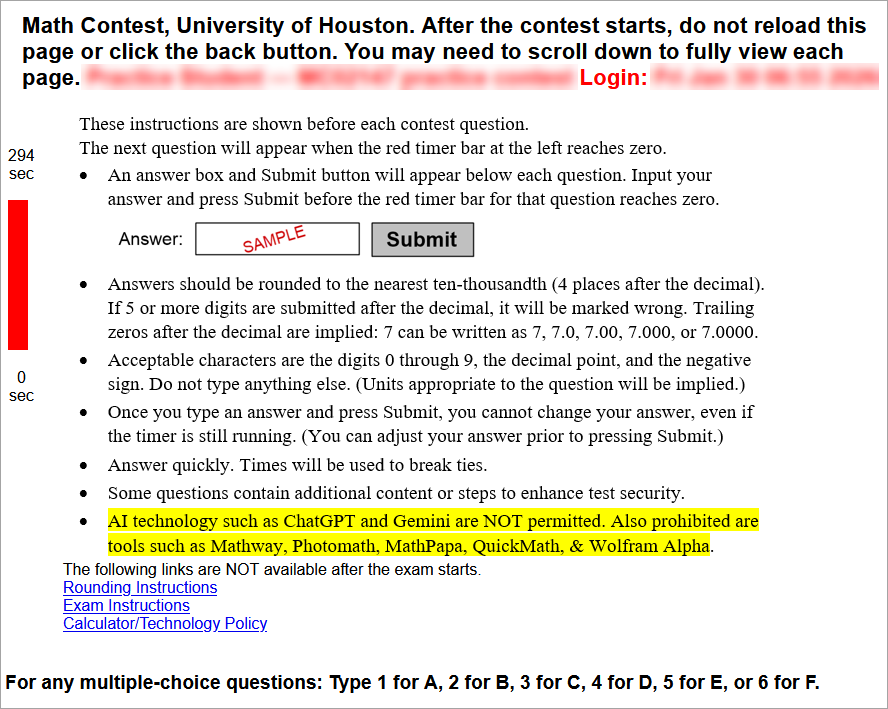
- Once you are on the instructions page with the red timer (shown above), you can simply wait for your exam to begin. (You may refresh the page if you want to update the timer.) At the designated exam time, the first contest problem will appear automatically on the screen. A sample first problem is shown below; the type of questions and time limits on your actual contest may be very different than what is shown here. Notice the fill-in-the-blank answer box as well as the Submit button. See the rounding instructions page to view acceptable input.
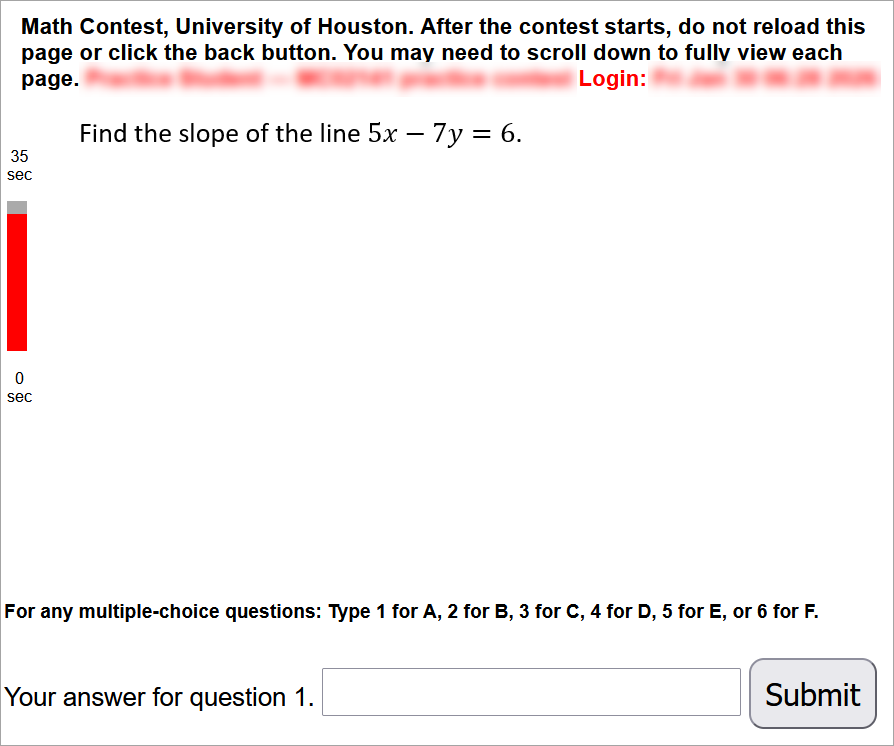
- Pay attention to the time limit listed for each question along with a countdown timer bar.
- Answers entered after time has expired will not be accepted.
- Once you type an answer and press the Submit button, you cannot change your answer, even if the timer is still running for that question. (You are permitted, however, to adjust your answer prior to pressing the Submit button.)
- If you type an answer and forget to press the Submit button, your answer will not be accepted.
- There is a fill-in-the-blank box for every question. Acceptable characters are the digits 0 through 9, the decimal point, and the negative sign; do not type anything else.
- Some questions will still be presented in a multiple choice format. In that case ,students should simply choose the best answer and then type 1 for A, 2 for B, 3 for C, 4 for D, 5 for E, or 6 for F. (No rounding rules are needed for multiple-choice questions unless indicated in the problem.)
- For questions that are not in multiple-choice format, answers should be rounded to the nearest ten-thousandth (4 places after the decimal). If 5 or more digits are submitted after the decimal point, the answer will be counted as incorrect — even if it is mathematically equivalent to the correct answer. See the rounding instructions page to view acceptable input, including shortcuts for integers and for some decimals. Do not type any units; units appropriate to the question will be implied in your answer.
- After the time for the first problem has expired, you will get a short break and be presented with the same instructions that you saw just prior to question 1. (Note for 2026: You will no longer be able to see your current score or the top 10 scores.) A countdown timer appears during the pause.
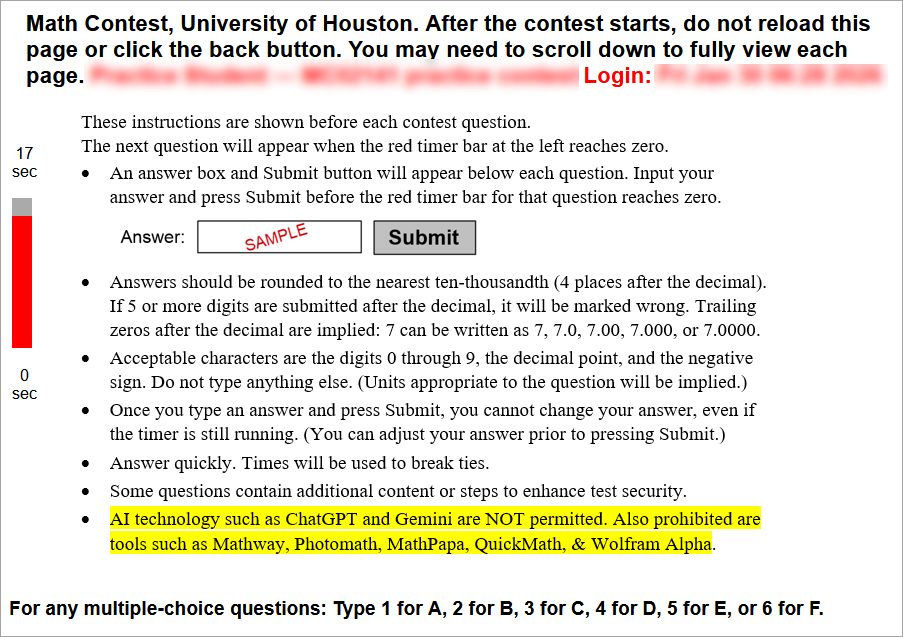
- You will then be presented with question 2, followed by a short break, followed by question 3, etc. until the exam ends.
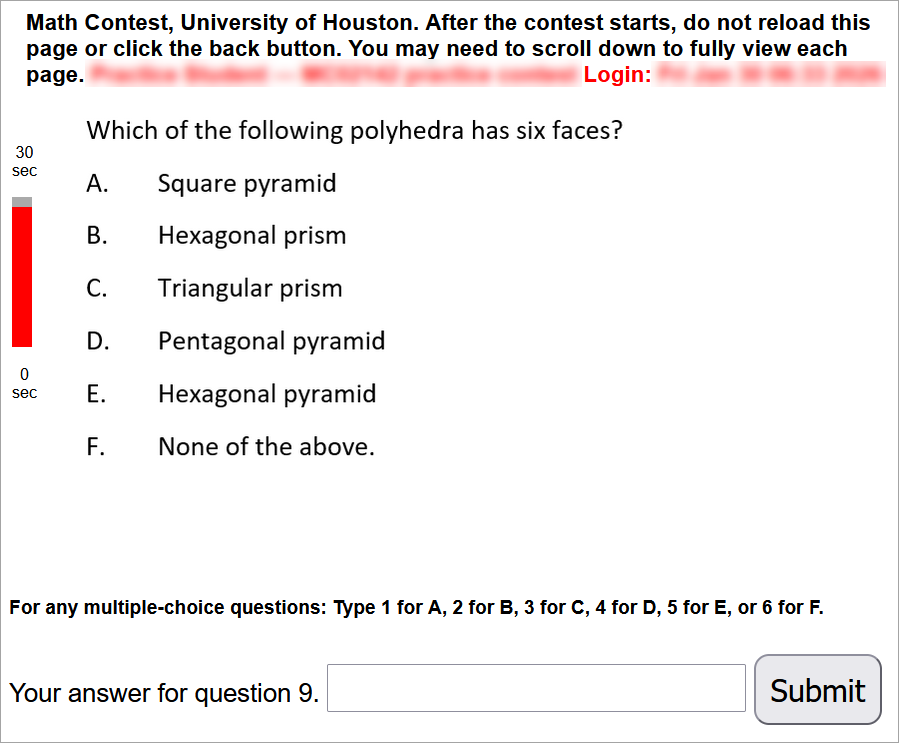
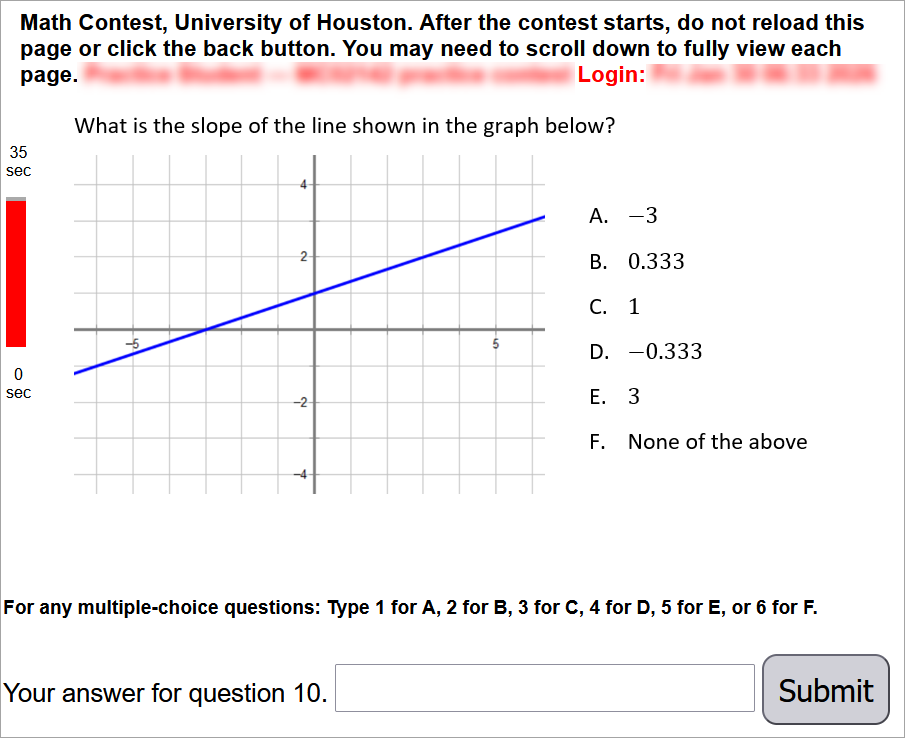
- Although the answer input method is fill-in-the-blank, students will still see multiple choice questions on some exams. Two sample questions are shown below. Students should answer 1 for A, 2 for B, 3 for C, 4 for D, 5 for E, or 6 for F.
In the following question, the answer is 1/3, which matches choice B, 0.333. Students should therefore type the number 2 in the answer box and then press Submit; students should NOT enter 0.333 in the answer box since it is a multiple choice question. The following screenshot was taken after the answer was submitted; notice that the answer says “Saved” next to the saved answer. Once an answer is submitted, it cannot be changed. Also note: Even though the rounding guidelines require rounding to the nearest ten-thousandth for “typical” fill-in-the-blank questions, you may see multiple choice questions that contain numerical answers written in a different form (such as exact answers like square roots, or decimals that are rounded to a different place value as seen below.) Just select the best answer and then enter 1 for A, 2 for B, etc.
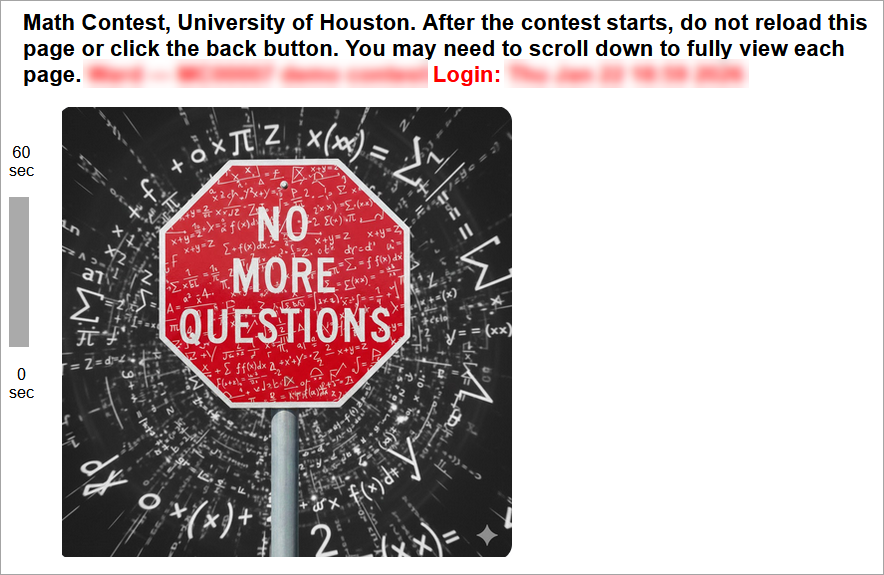
- The process of answering questions and taking a short break will repeat until you reach the end of the last question, at which point you will see the following screen.
- It is OK to refresh the page before the contest begins, but you should not refresh the page after the contest begins unless you experience technical difficulties. You should not hit the back button on your browser, and it is not possible to go back to a problem or change your answer once the time for a problem has expired. If you experience technical difficulties during the contest, you can click on your exam link again or refresh the page. All previously submitted answers will have been saved, and you will return to whatever problem is being presented at that time.
Note: If you refresh a contest page during an exam question, you risk initiating technical difficulties, or risk wasting time while the page refreshes which might prevent you from having time to submit an answer to the question. If you refresh a page AFTER an answer is submitted, the system will appear to allow you to retype an answer and to save another answer. Although all such answers will be saved in our system, we ONLY use the first submitted answer for grading — so do not attempt to refresh the page in order to submit additional answers. - You may need to scroll down or scroll to the right to see the entirety of each page.
- Since monitors/laptops/tablets have different screen resolutions, you may need to zoom in on your contest page to see images more clearly, or zoom out to see more of the page at once. (Experiment with this using the practice contest — which will be posted soon — to determine zoom settings that work well on your device.)
On a laptop or desktop:
To zoom in: Press CTRL (Cmd for Mac) and then “+” (plus).
To zoom out: Press CTRL (Cmd for Mac) and then “-” (minus).
To reset the zoom level: Press CTRL (Cmd for Mac) and "0" (zero).
On an iPad, other tablet, or smartphone:
To zoom in: Pinch fingers away from each other
To zoom out: Pinch fingers toward each other.
- It can be to your advantage to answer quickly. Winners are determined by the number of questions that they answer correctly. If any students in 1st-6th place are tied in regard to the number of correct answers, the total time taken to submit correct answers will be used to break ties.
- Some questions contain additional content or steps to enhance test security.
- There is no penalty for guessing.
- Most contest exams will contain between 35-50 questions, depending on the length of each question. We are crafting the exams so that each one lasts 50 minutes or less (including the time that it takes to answer the last question).
- Course-Specific Instructions
- Statistics
Links to a Z-table, T table, and chi square table are provided in the Courses page for this exam at https://casa.uh.edu. - Geometry
- Diagrams may not be drawn to scale.
- If any coordinate graphs/grids or number lines are drawn: the spacing between adjacent horizontal markings or adjacent vertical markings (such as lines, segments, or dots) is assumed to be one unit unless otherwise noted in the question.
- Physics

- Statistics
Instructions for SmackDown
Visit our SmackDown description on our contest website for more information about SmackDown.To access SmackDown on the day of the contest:
- Students view the competition through the
- Contest Zoom Room. (The link for the Zoom Room will also be posted in your Courseware account and in multiple locations ofour contest website), and
- Students access their SmackDown answer sheet through their Courseware account. Click on the Courses tab, choose the SmackDown course, and then click on the individual answer-sheet link that can be found at the top of your SmackDown course home page. (This individual link will appear on the SmackDown course page the night before the contest. You can click on it prior to the contest, but it will not begin registering answers until the actual contest time.)
Honor Policy
By taking any University of Houston Math Contest exam, you are affirming the following:
I promise that I will not commit any acts of academic dishonesty during, before, or after the administration of this test. Academic honesty violations include (but are not limited to) the following: sharing questions during the exam, sharing answers during the exam, using unauthorized software (anything other than a calculator or other computational tool), getting online or in-person help, having others take the exam for me, using notes or books, using formula sheets, taking an exam that is inconsistent with the Contest Enrollment Rules, or using any prohibited technology. (AI technology such as ChatGPT, Gemini, Llama, or other large-language-models are not permitted. Also prohibited are similar math-specific tools such as Mathway, Photomath, MathPapa, QuickMath, or MathSolver. Wolfram Alpha is also prohibited.)